BoardCerts makes learning on the go as easy as 1,2,3. But while your first device might have your account up and running at all times, chances are, you might be finding it hard to copy the link and get everything set up in a different device, say your phone or tablet. Here's how you can easily add your account to a new device and keep studying whenever and wherever.
But first, if you need help purchasing your course or creating a new account, check these articles out:
Here's how you can login from a new account:
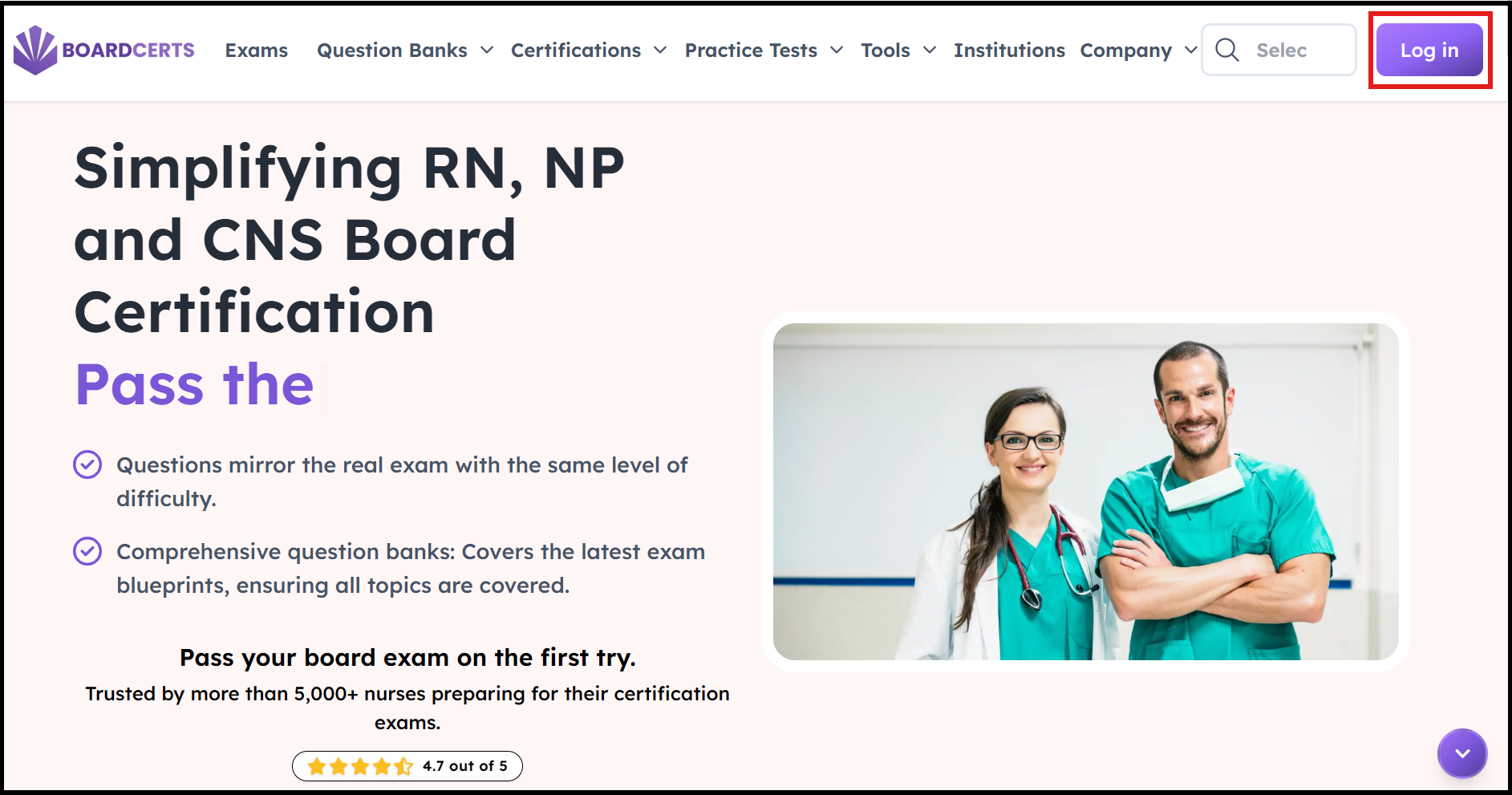
The easiest method is going to www.boardcerts.com and clicking on the Log in Option at the top-right corner.
You can then directly navigate to the Homepage of your dashboard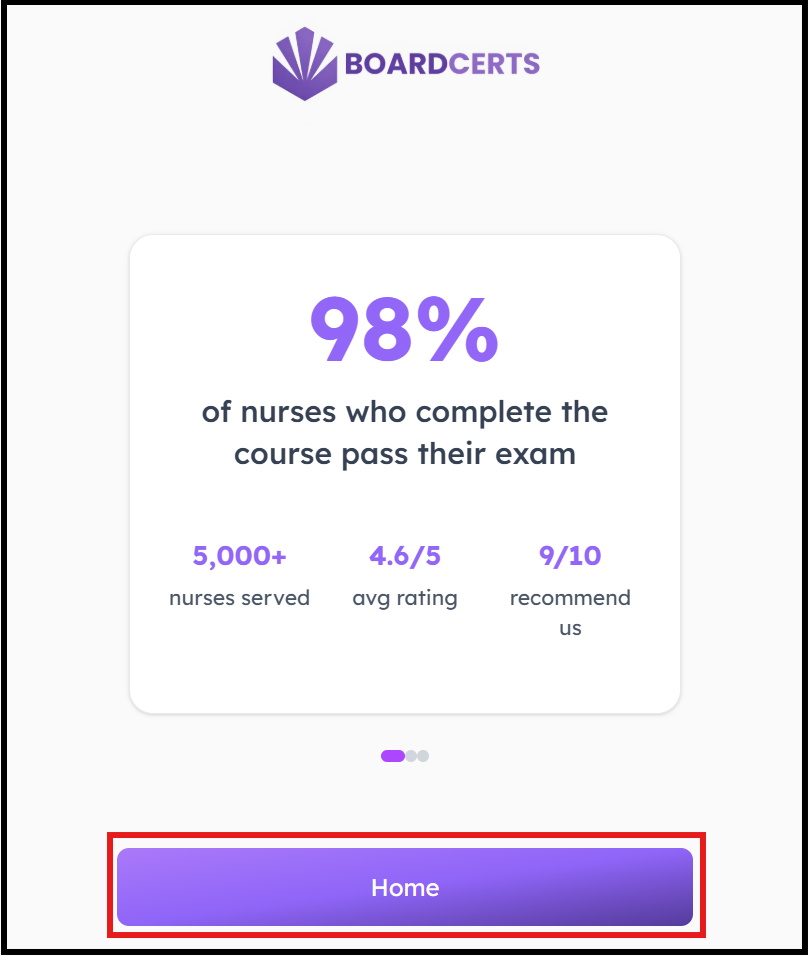
The other method is Logging in via Email, here's how you can do that:
Step 1: Go to your inbox in your new device and navigate to the original email from DoNotReply@notify.boardcerts.com with the subject Verify Your Email containing login instructions from BoardCerts.
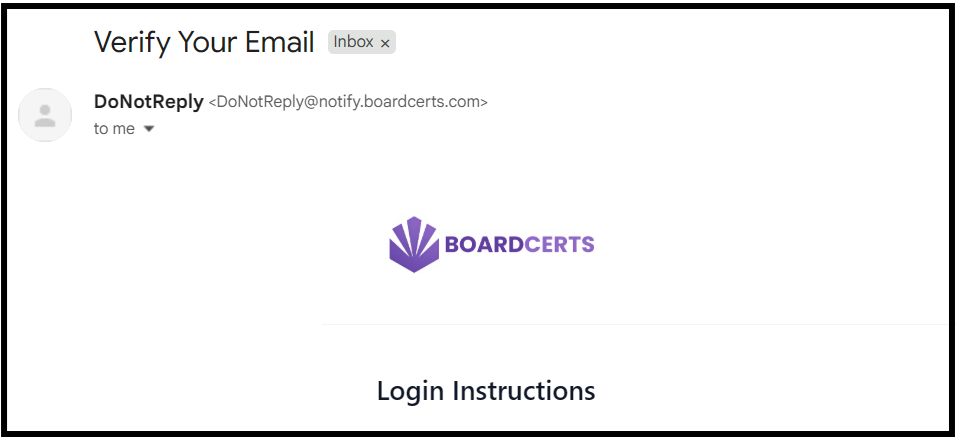
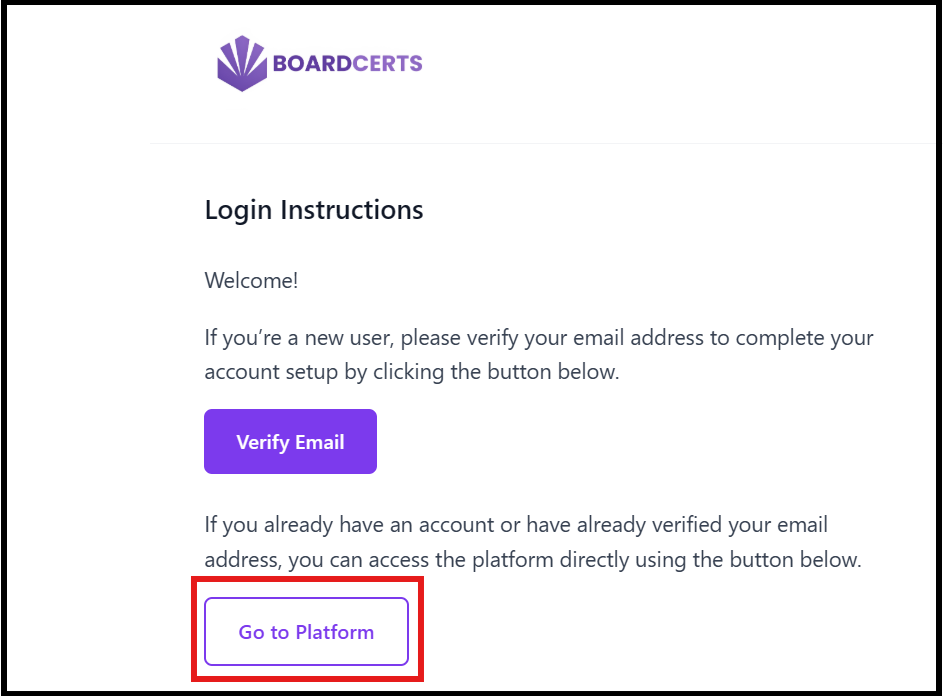
Step 2: Scroll down and click on the "Go to Platform" button.
Alternatively, if you cannot locate the above email, navigate to the email with your receipt from when you first purchased the course and go to Account Dashboard from there: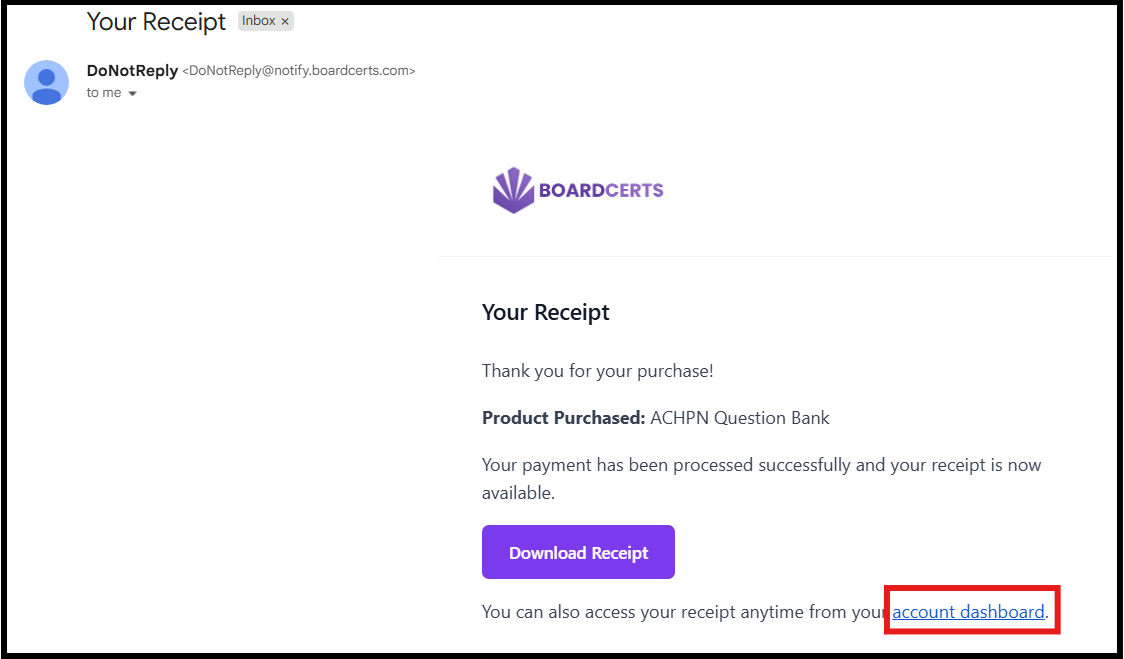
Step 3: You can then login using your Email/ID and Password to continue learning wherever you are.
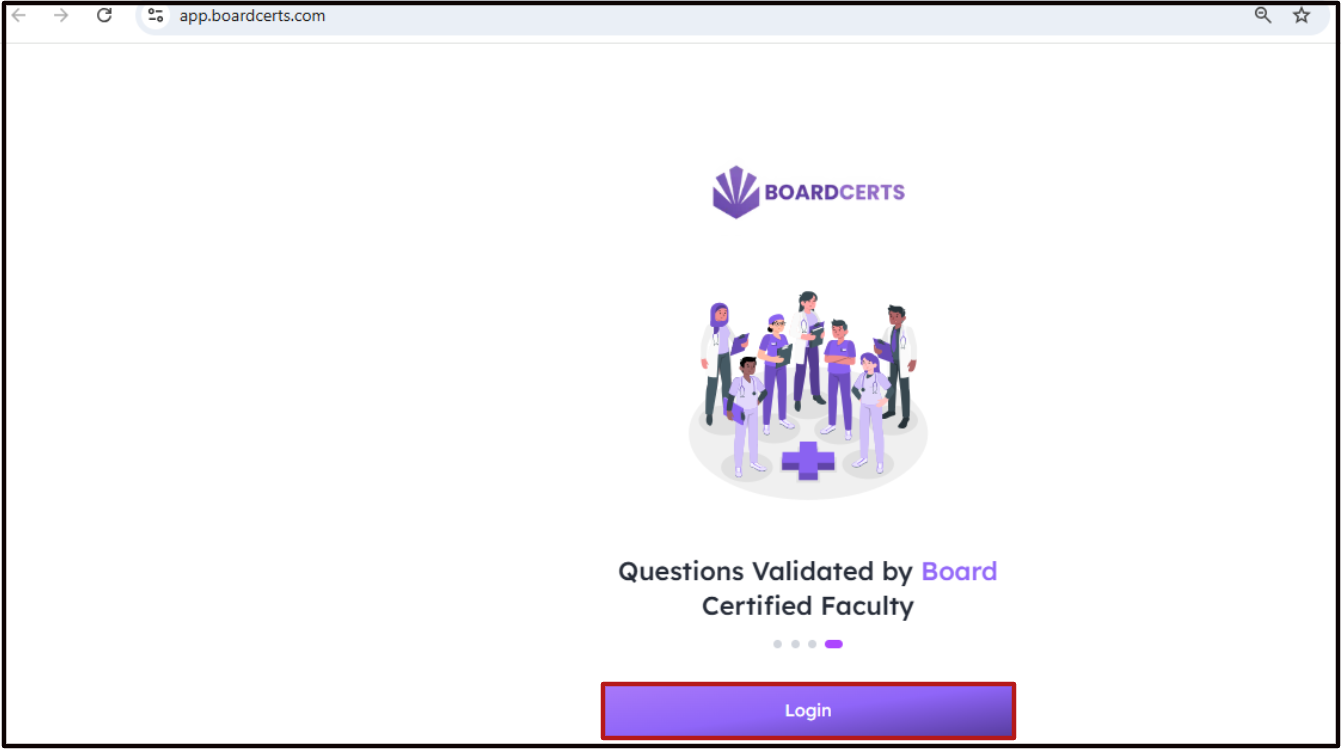
You can also use the same link to return to the platform anytime you’re ready to study.
If you need help in creating question bank study sessions, check this article out:
