BoardCerts’ Learning Management System includes a powerful flashcard module designed to reinforce key concepts and improve retention. You can easily create custom flashcard sessions by domain or topic and study more effectively alongside your custom question bank.
In this article, you'll learn:
- How to Create a Flashcard Session
1. How to Create a Flashcard Session
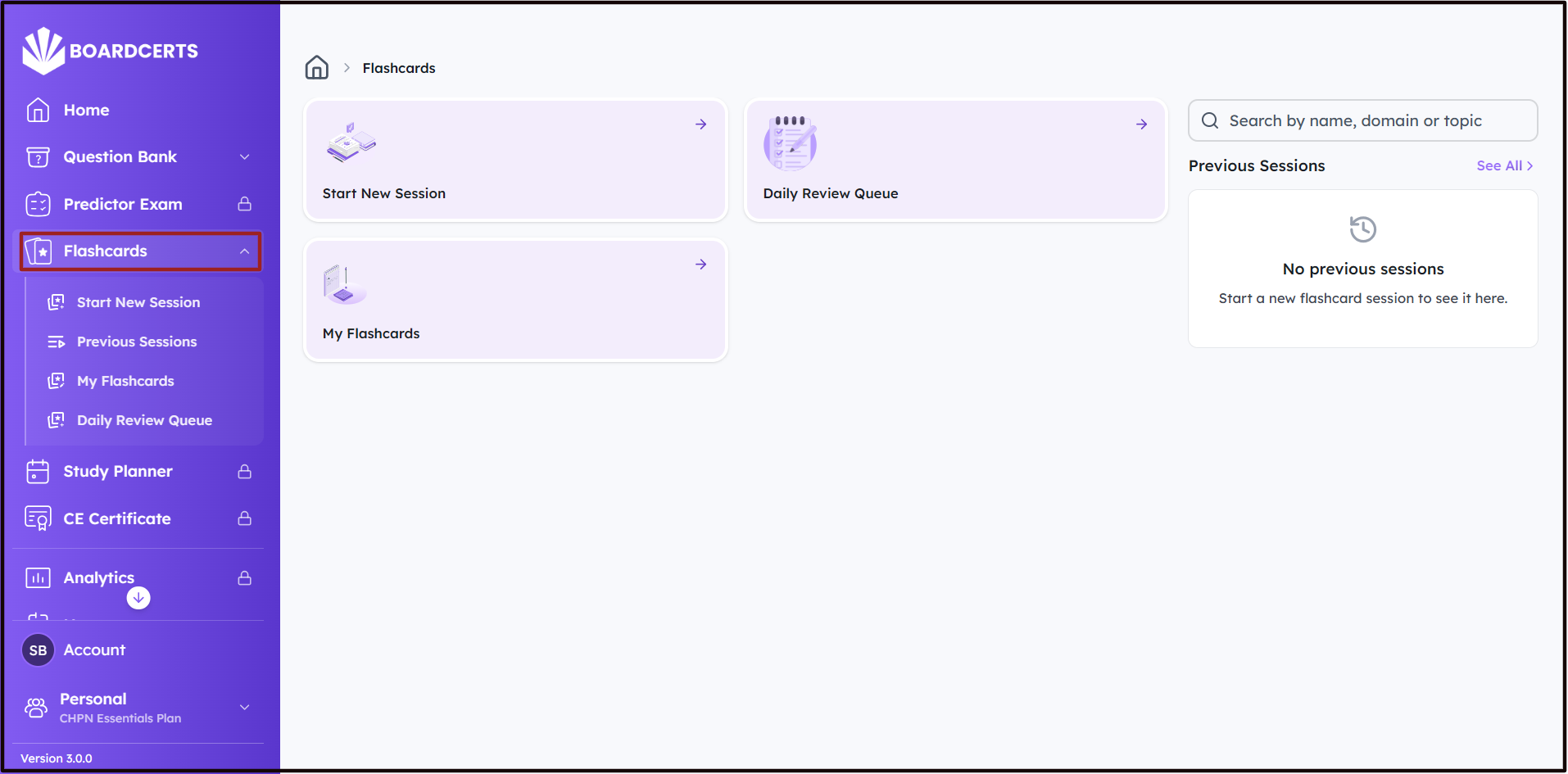
Step 1: Navigate to the Flashcards option from the main menu on the left.
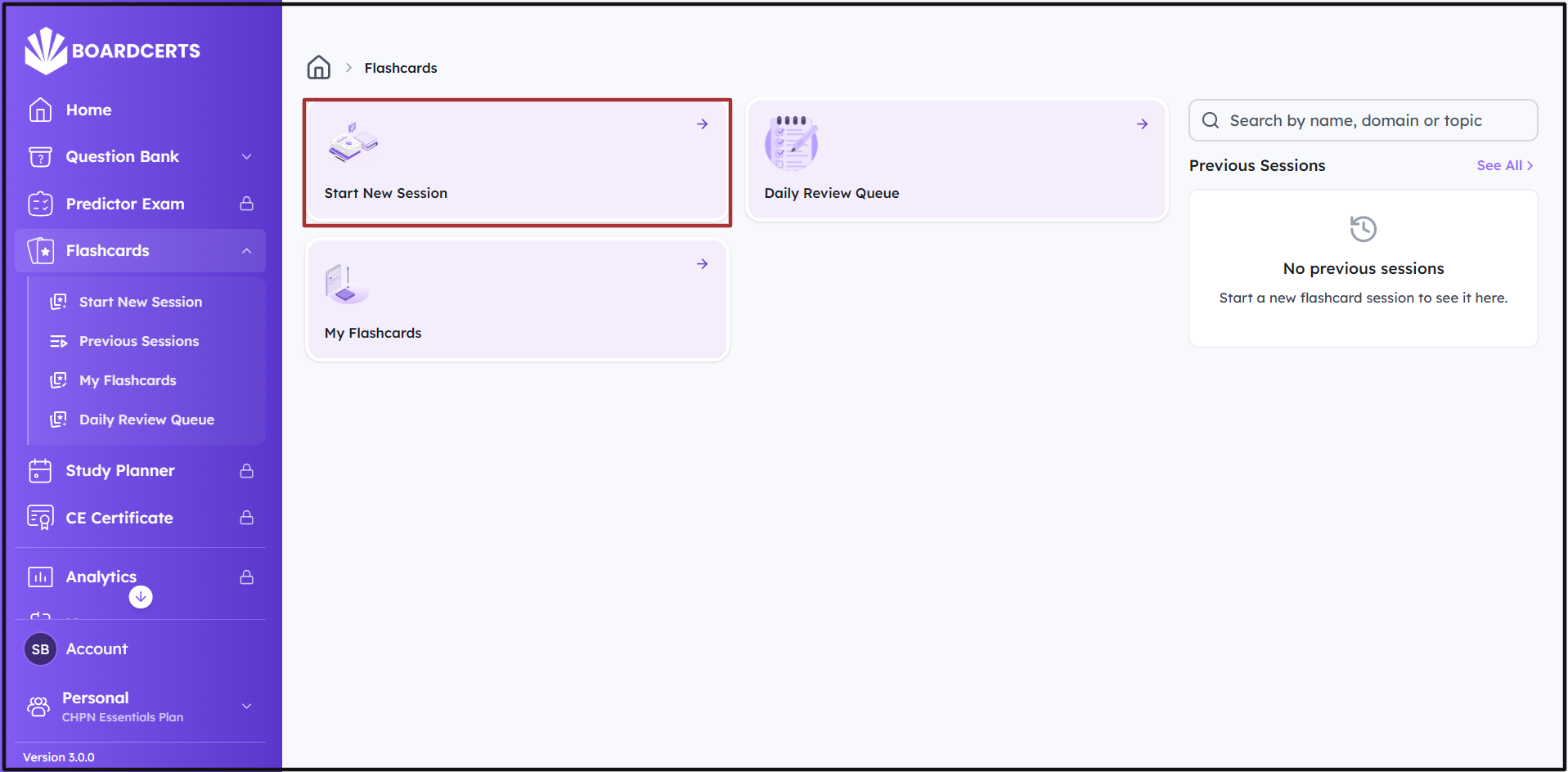
Step 2: Go to Start New Session
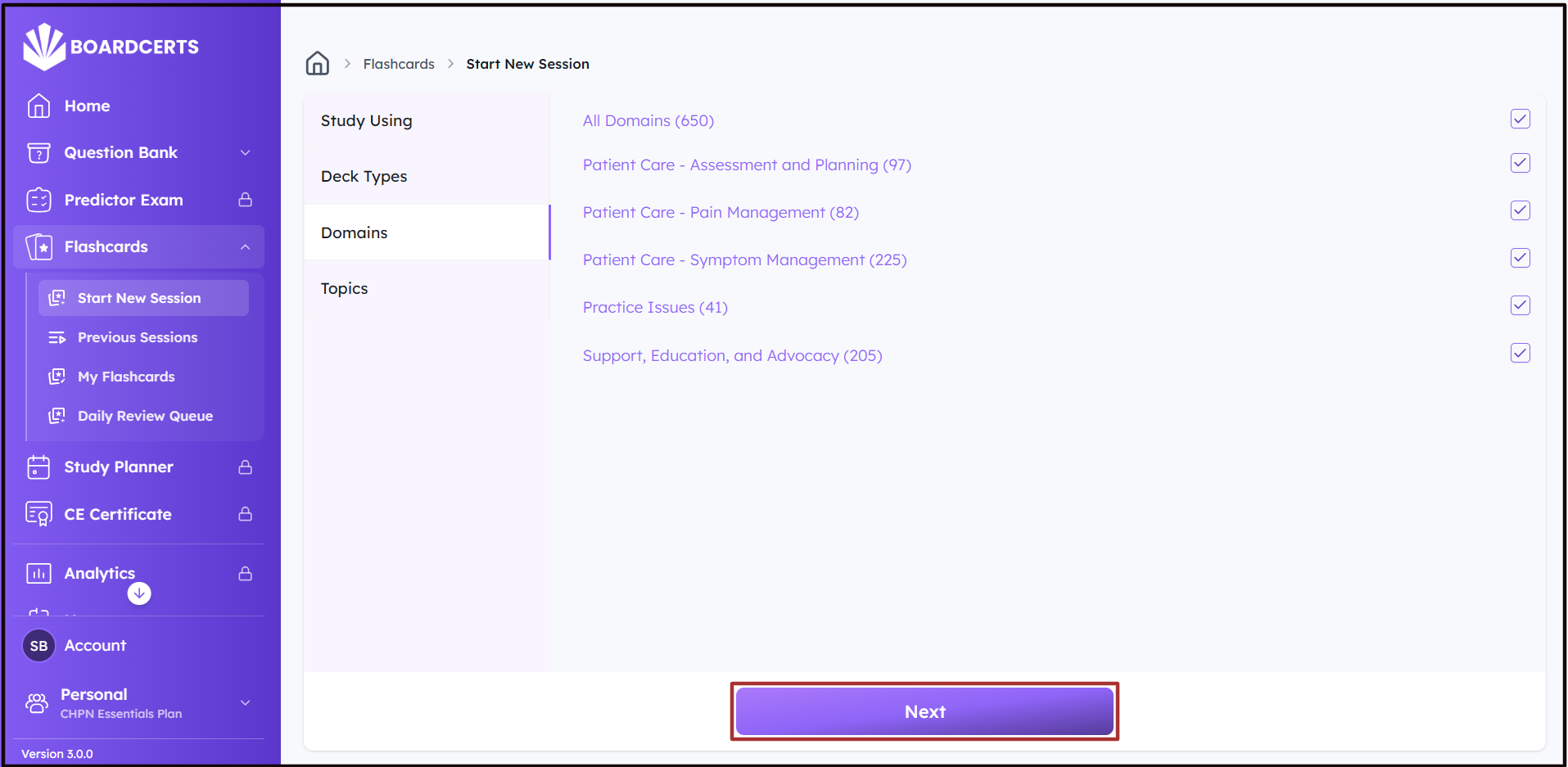
Step 3: Create a Custom deck based on the Domains and Topics you want to review and click Next.
If you have already completed a few sessions and want to revise; you can also create a deck based on your previous cards.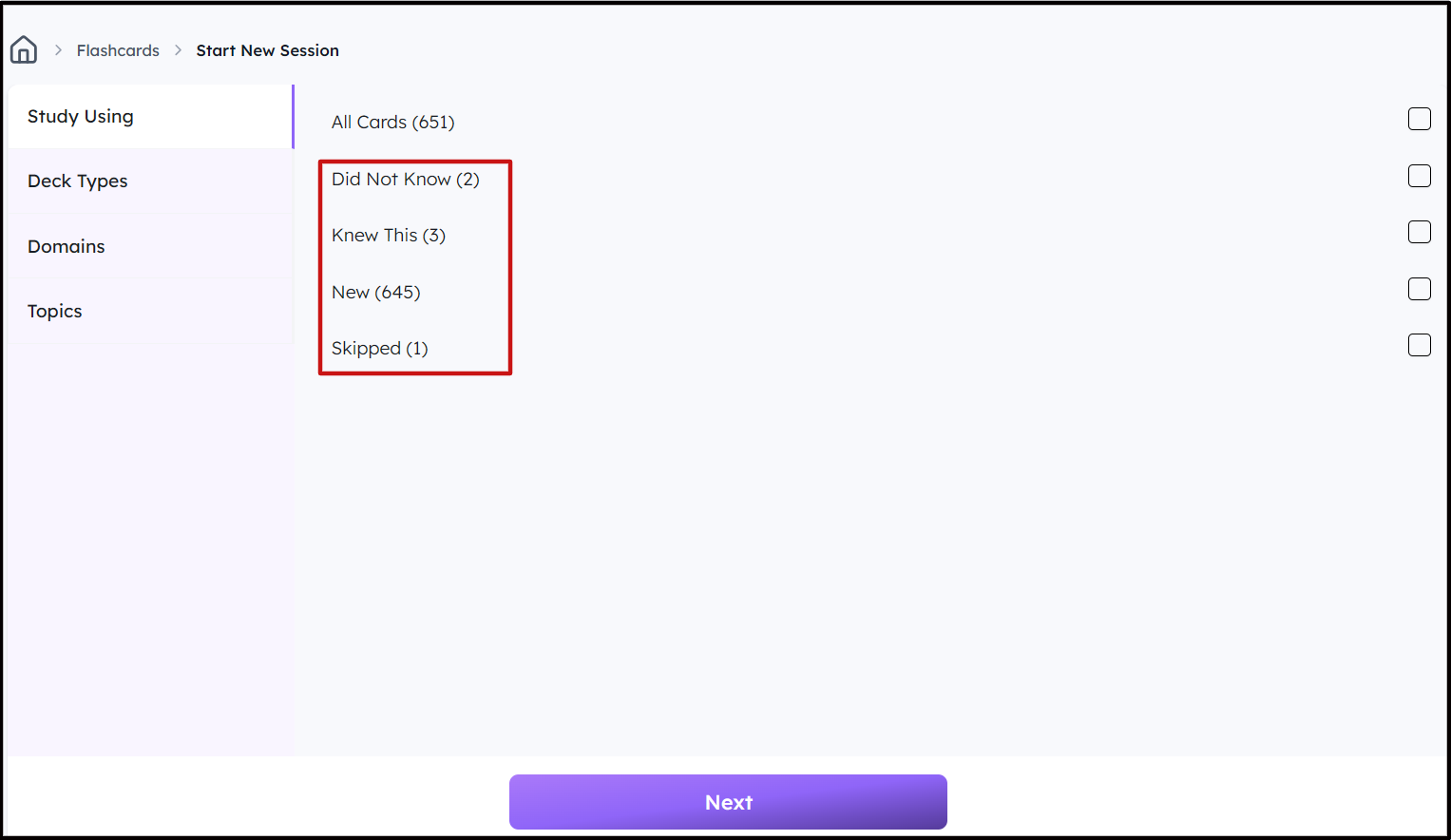
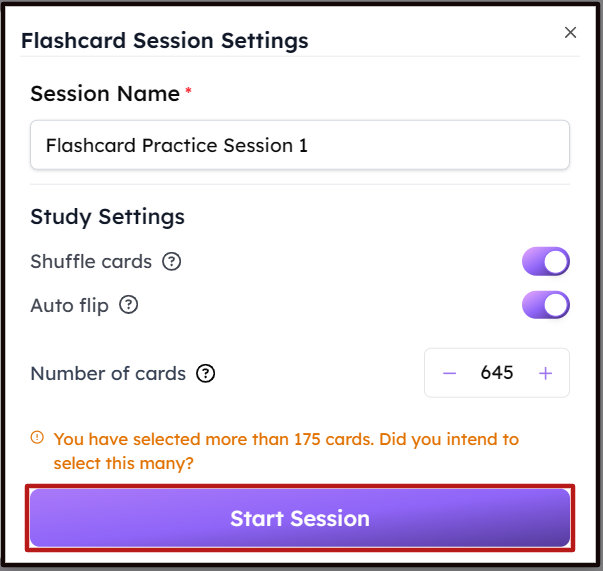
Step 4: Confirm the Number of Flashcards you want to create, whether or not you want to Shuffle the deck, or Auto-flip after 30 seconds, then click on Start Session.
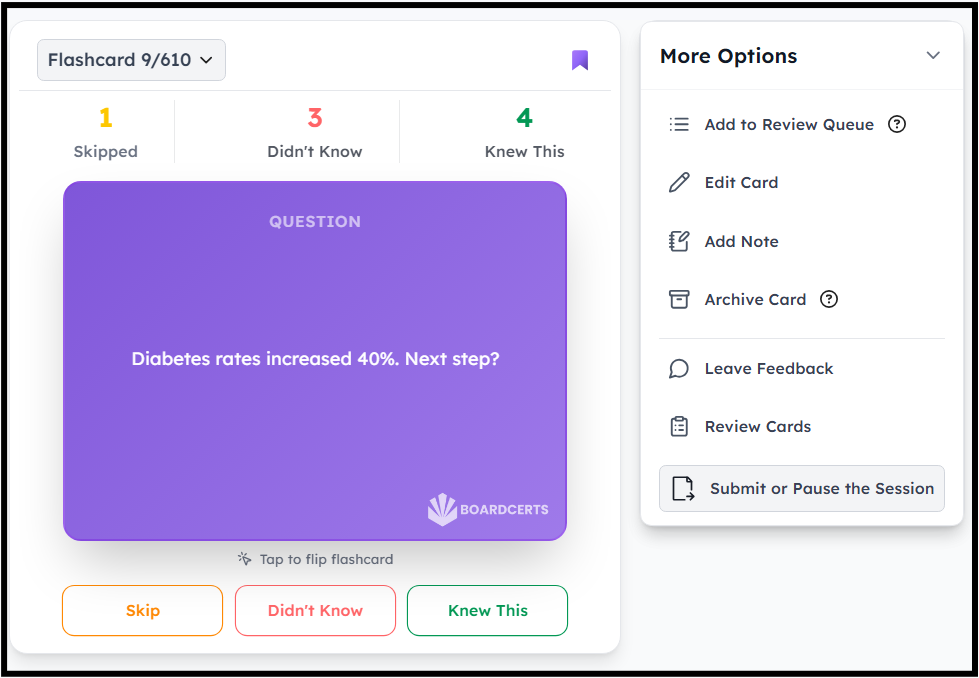
Step 5: Start reviewing the Flashcards
- You can Click on the card to flip and reveal the answer
- Navigate to any flashcard from the drop-down on top-left
- Categorize the flashcard based on whether or not you knew about the content, or skip it
- Add it to your review queue for repetition in learning
- Edit the card
- Add notes
- Archive it temporarily from the deck, and
- Leave a feedback
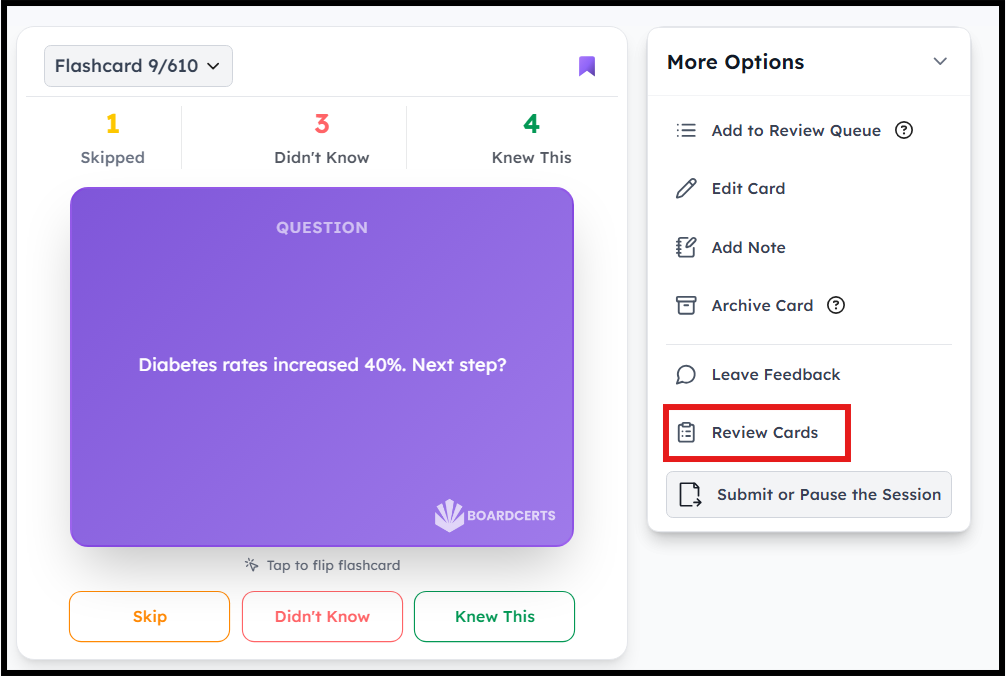
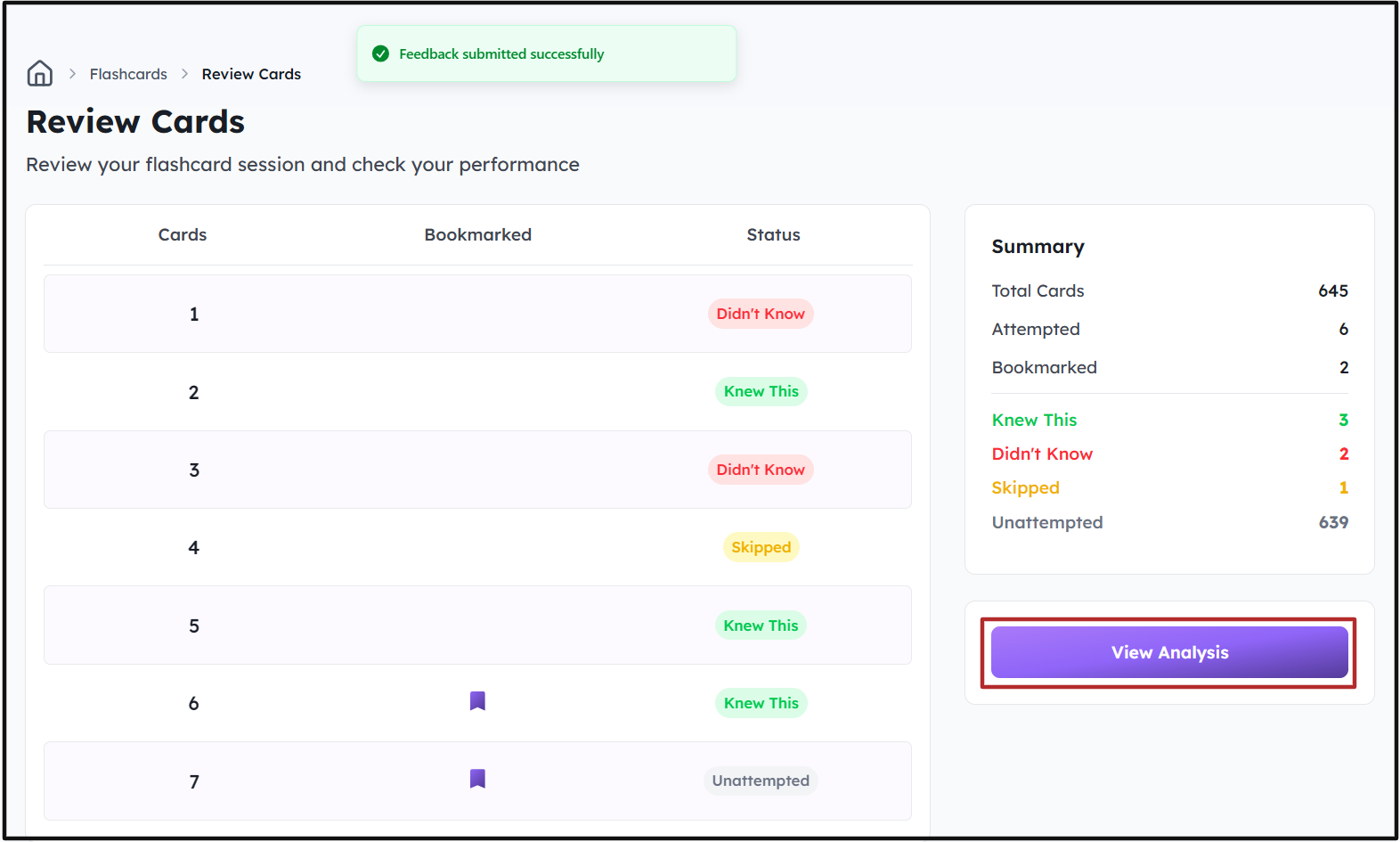
Step 6: To review your performance in the session, go to Review Cards on the right side.
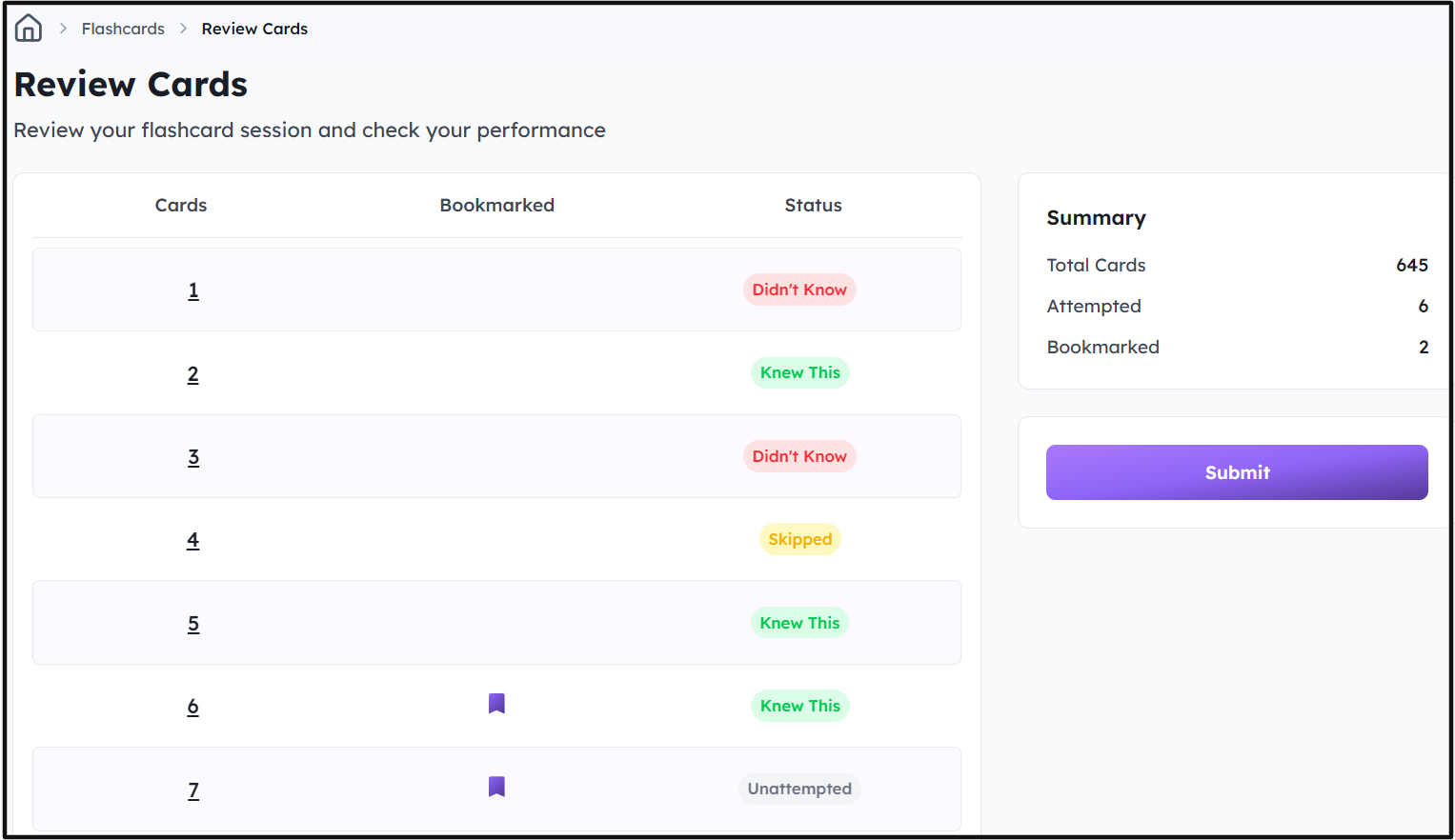
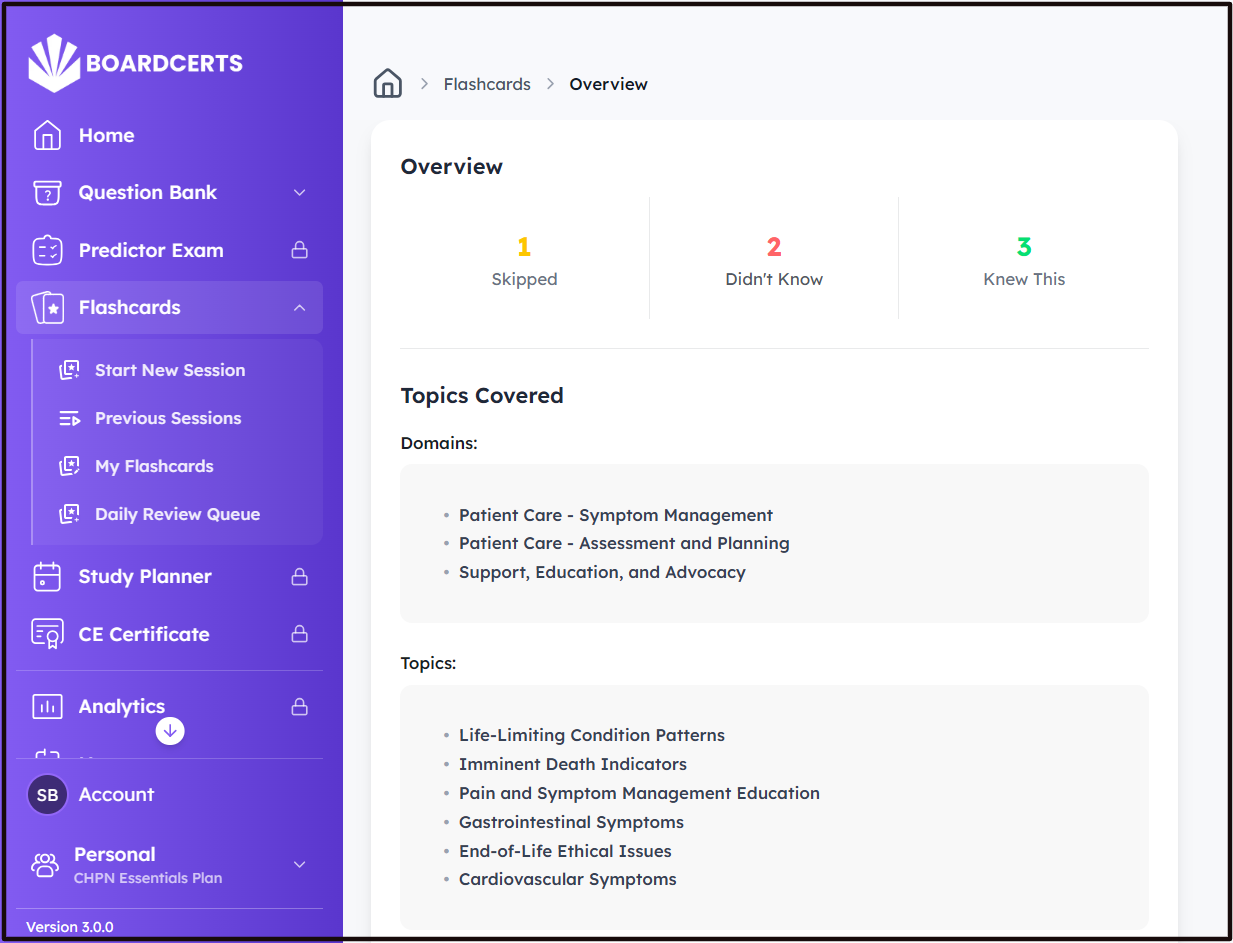
Step 7: Once you submit the session you'll be able to review the summary, click on View Analysis to get the detailed feedback.
Apart from creating a flashcard session from scratch, you can also convert the questions into flashcards, here's How to Convert a Question into a Flashcard.
