There are many ways to practice for your board certification exam, but timed exam sessions are one of the most effective ways to prepare for test-day conditions. BoardCerts predictor exams mirror the timing, difficulty level, and content of the real exam, helping you feel confident and fully prepared on exam day.
Here's how you can use the predictor exams feature to your advantage:
First things first, ensure that you have purchased either the Comprehensive or Essential Plan to unlock the predictor exams. You can find more details on purchasing a BoardCerts course here:
Or if you already have the Starter Plan, here's how you can upgrade to Comprehensive plan via the platform:
Once you have the Comprehensive or Essential Plan, follow these simple steps:
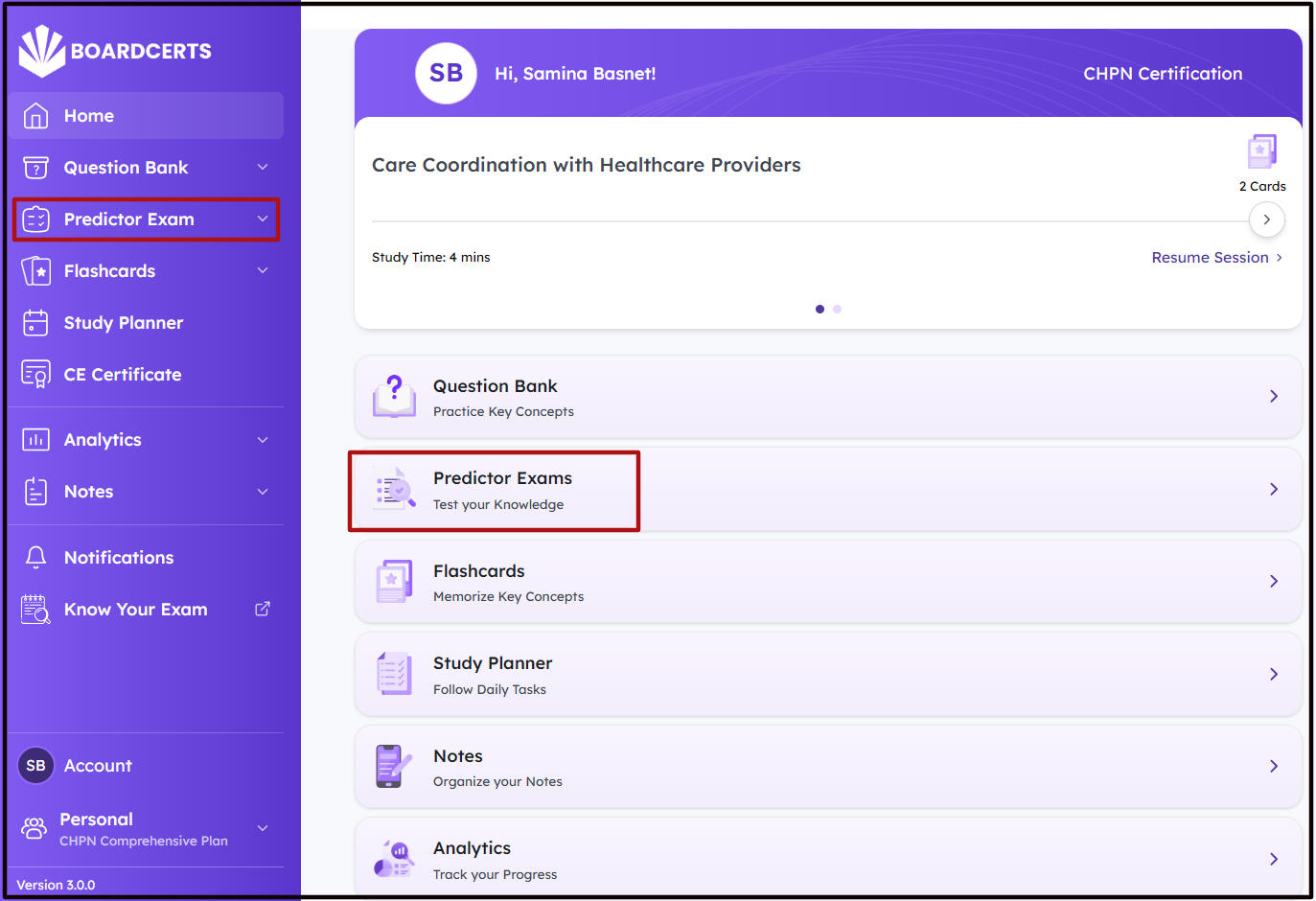
Step 1: From the Home Page, navigate to Predictor Exams menu option.
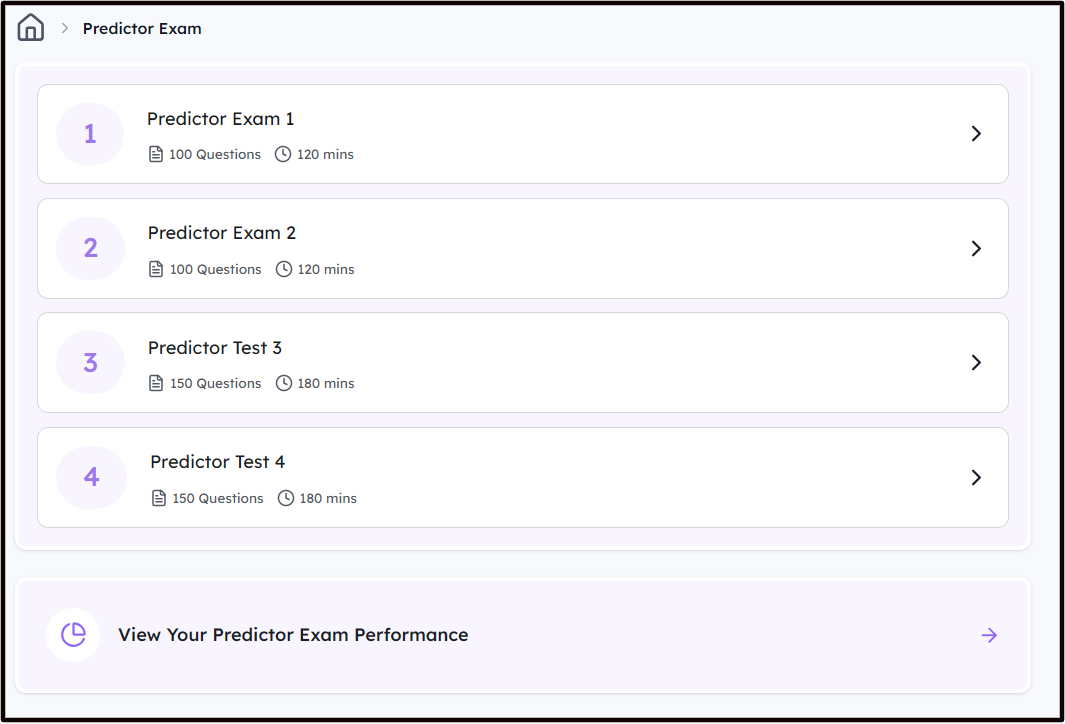
Step 2: There are four timed predictor exams for each course. Click on one to get started. Please note that the time is calculated based on the total questions and time you'd get on the actual exam.
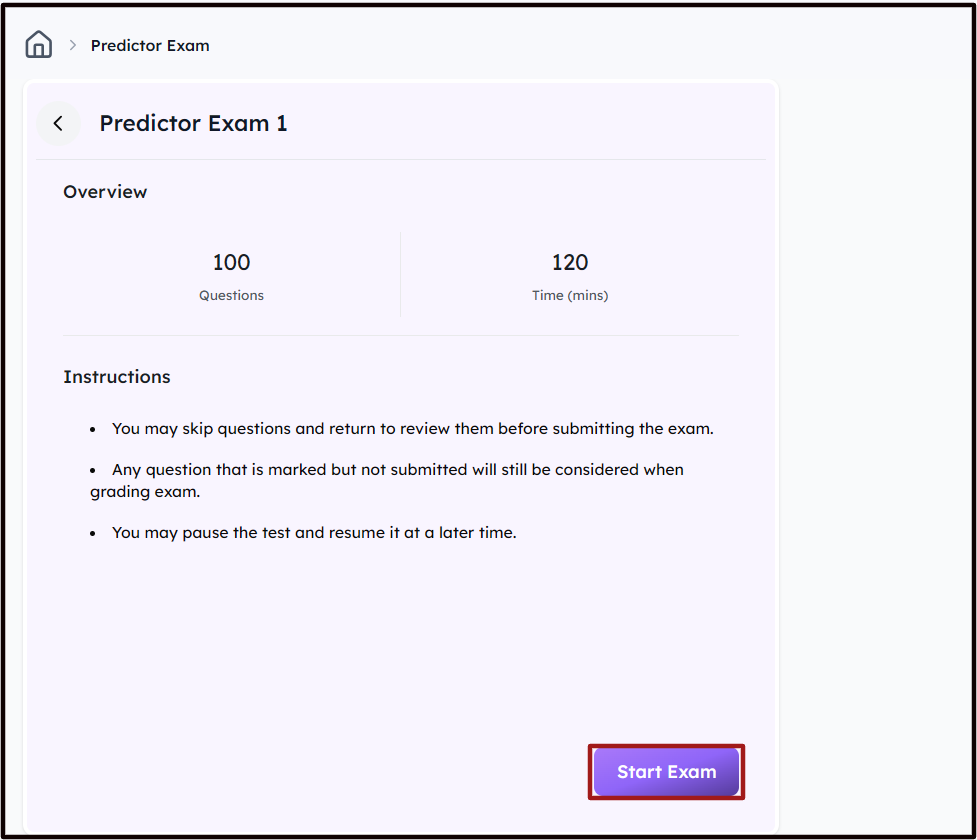
Step 3: Review the Instructions and click on Start Exam
Step 4: You can now start practicing. There are a few features to make this process easier and more dynamic.
Answering Questions vs Striking off
-
Striking Off:
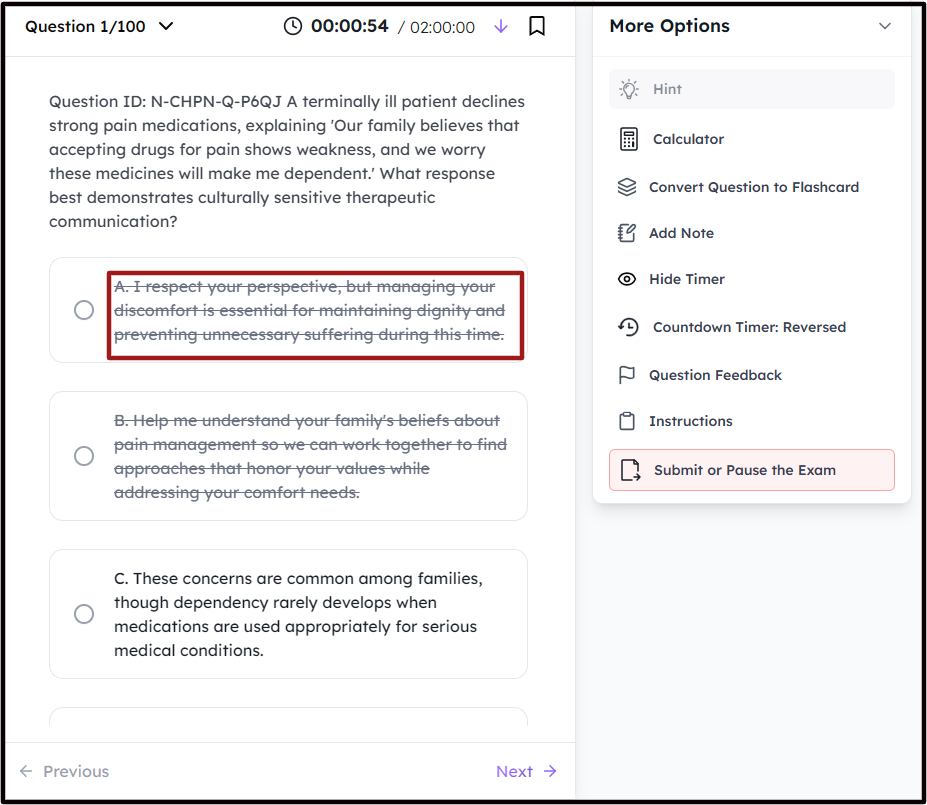
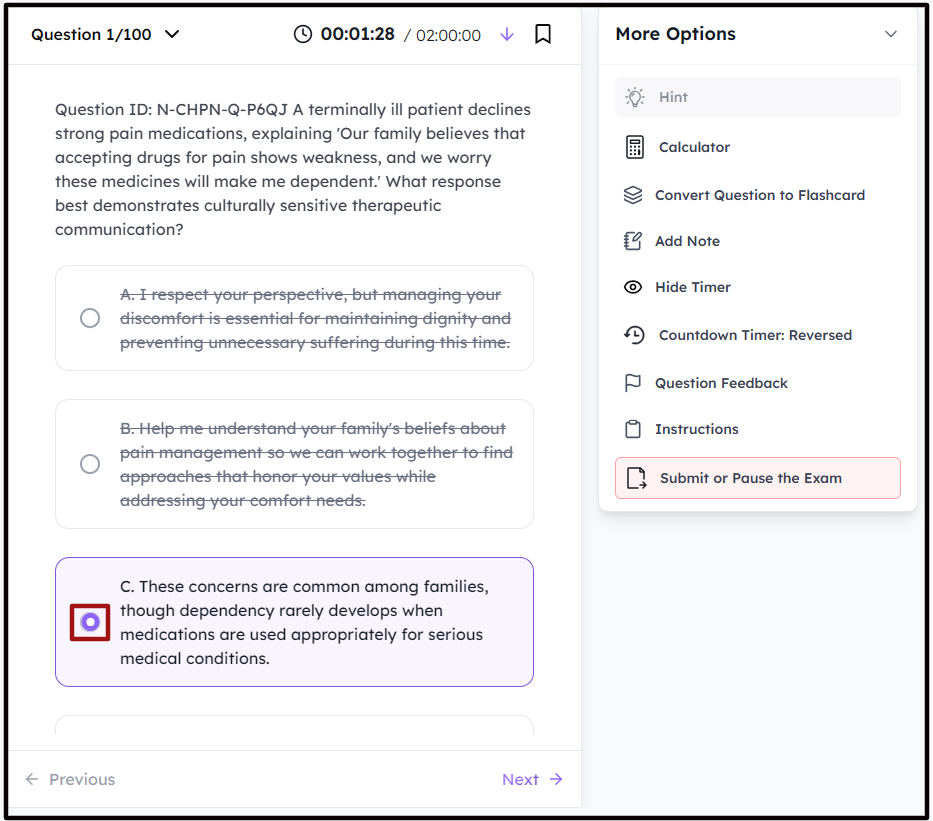
The BoardCerts Learning Management System offers a helpful feature to assist users in answering questions, particularly those that require the elimination method; much like real-world exams. You can simply strike off incorrect options sequentially until you identify the correct answer.
To do this, click on the option (not the circle in front of it) to strike it off
-
Answering:
To choose the correct answer, click on the circle in front of the option and click Next.
Bookmarking a Question
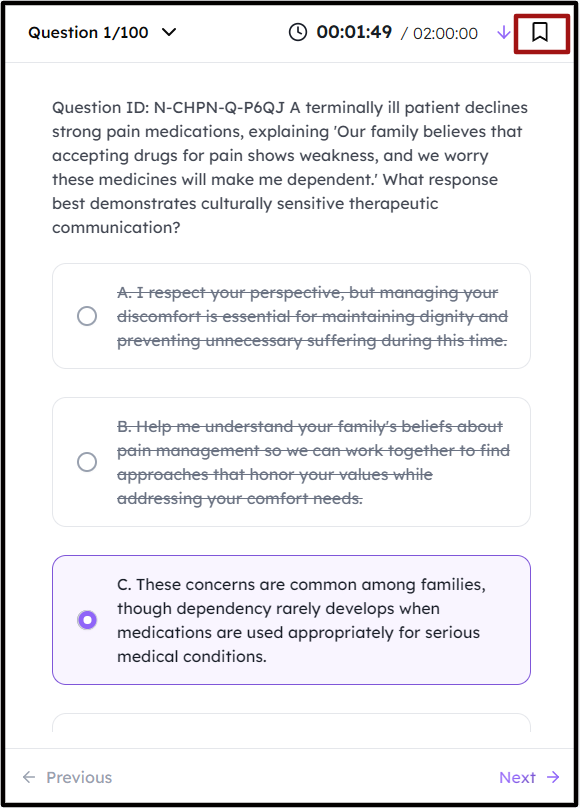
If you want to come back to a question later, you can use the bookmark button on the top right.
Navigation
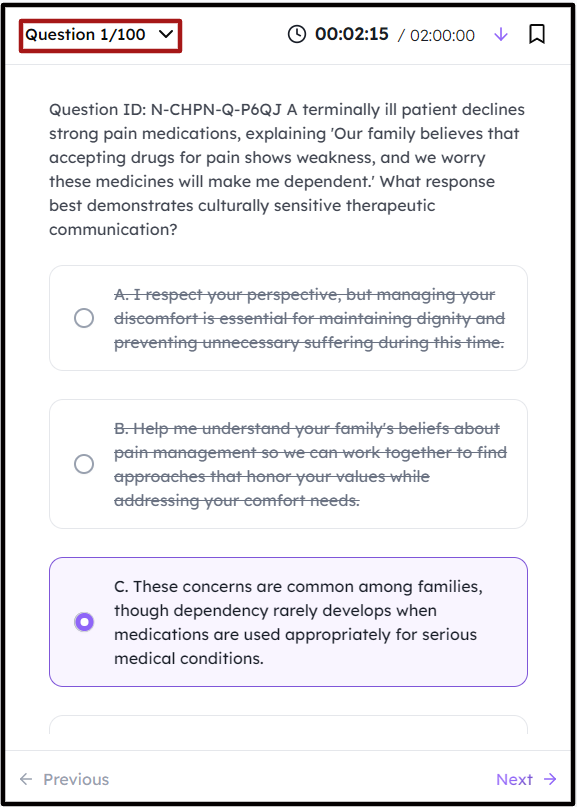
You can easily navigate to other questions or bookmarked questions by clicking on the dropdown in the top left.
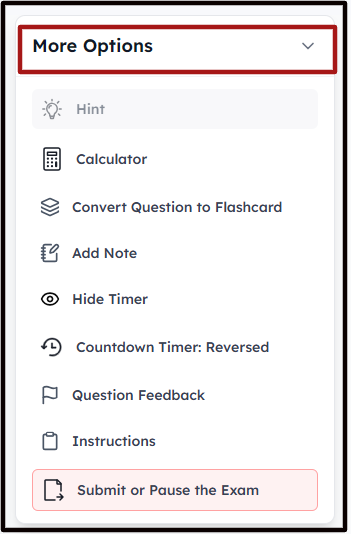
Clicking on the “More Options” dropdown on the right gives you the option to:
-
Use a calculator for basic calculations
-
Convert the Question to Flashcard
-
Add Notes to the Question
- Hide or show the timer
- Toggle the timer between forward counting or countdown
-
Provide a Feedback for the question
-
Review exam Instructions
-
Submit or Pause the session (you can always pause a session and come back to it at a later time)
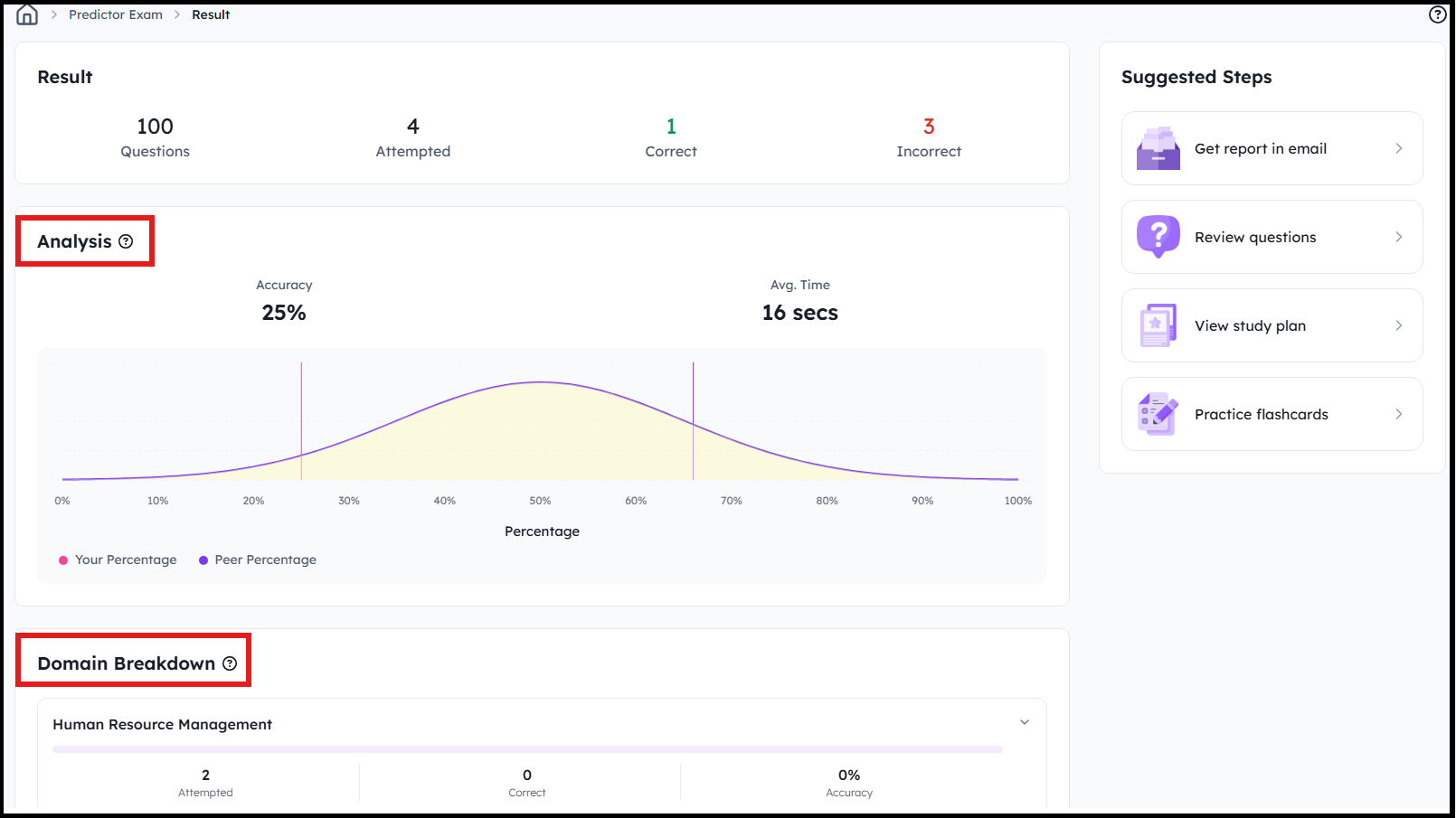
Step 5: Once you Submit the exam, you can review your Results. The results are broken down by Domain and how you compare with your Peers
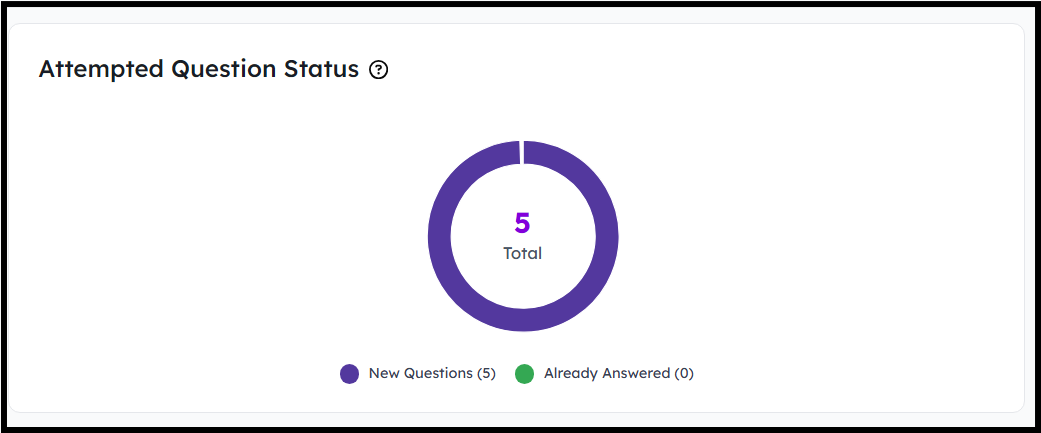
You can also view which questions from the current sessions were already attempted and which were new. This is specially helpful to track your progress.
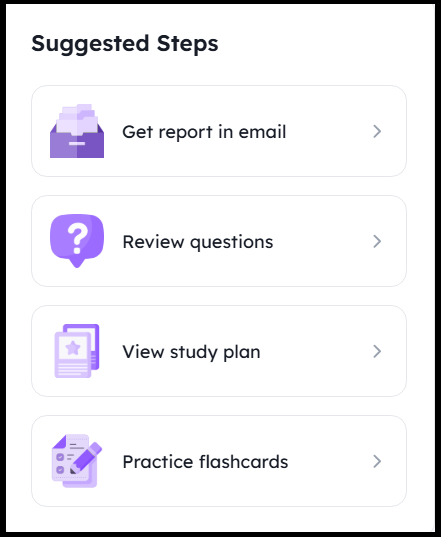
Step 6: From the Menu on the right, you can choose to get your Results in Email, Review the Questions to understand where you need to focus more on, view your Study Plan, or Practice Flashcards.
Step 7: If you wish to review your answers in more detail, go to the Review Questions option on the right.
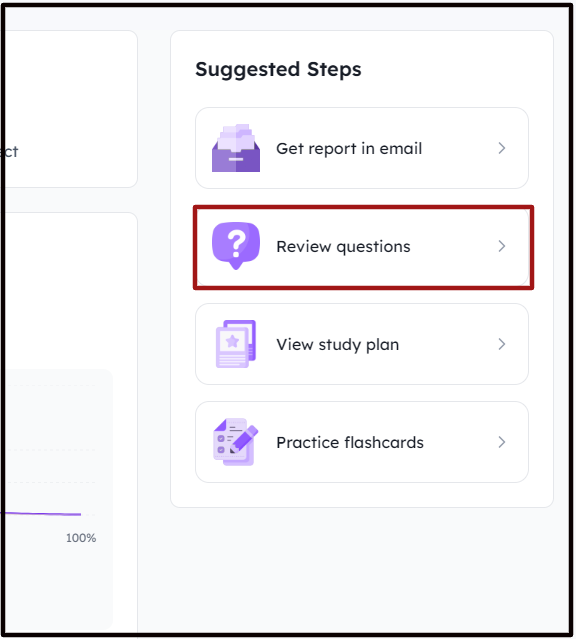
From here, click on the drop down to reveal the results of Individual Questions and navigate to the ones you wish to Review. At BoardCerts, the questions are accompanied with detailed explanations to help you better understand the concept. Just scroll down to view the explanations.
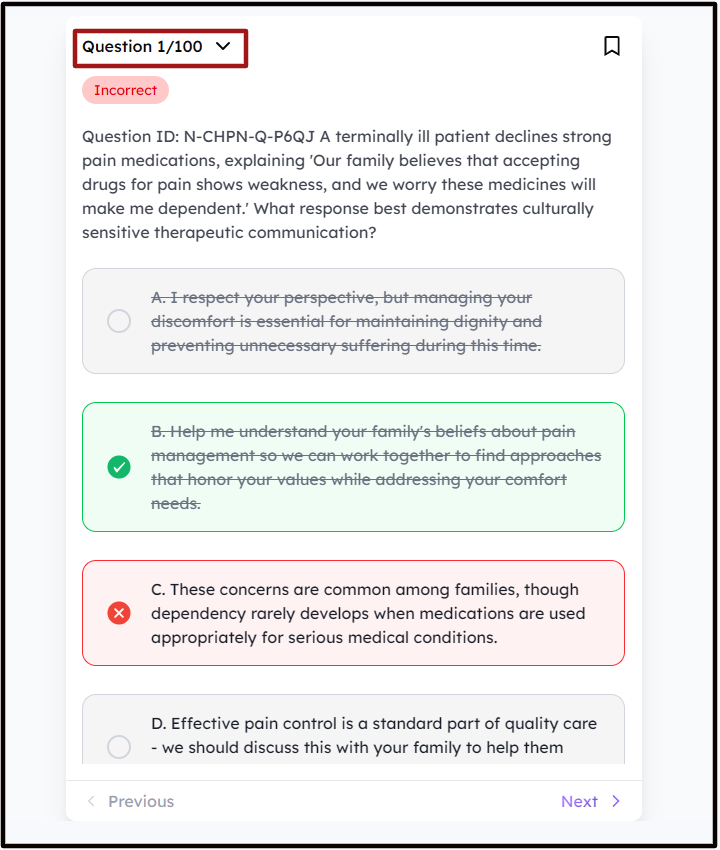
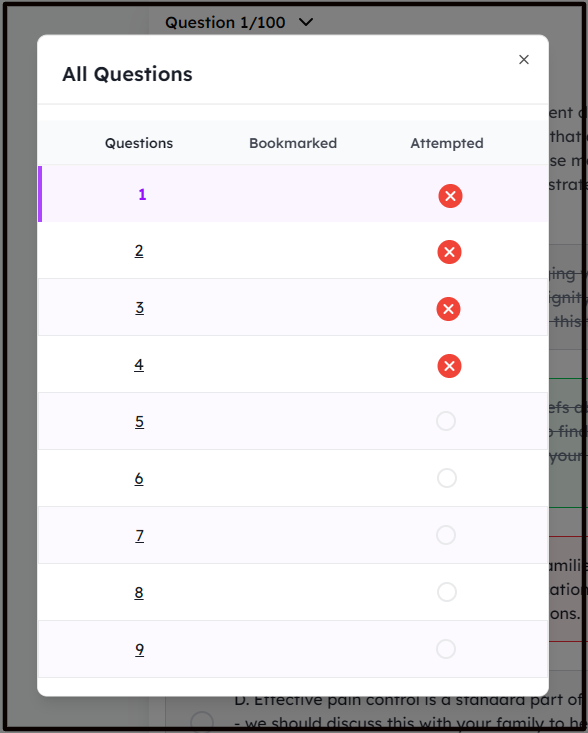
Once you are done reviewing, you can navigate back to Predictor Exams from the main menu and retake the same Predictor Exam or move on to the next one.
Pro Tip: We recommend completing one predictor exam early during your preparation journey to get a baseline idea of where you stand and retaking it periodically to see how far you have come.
