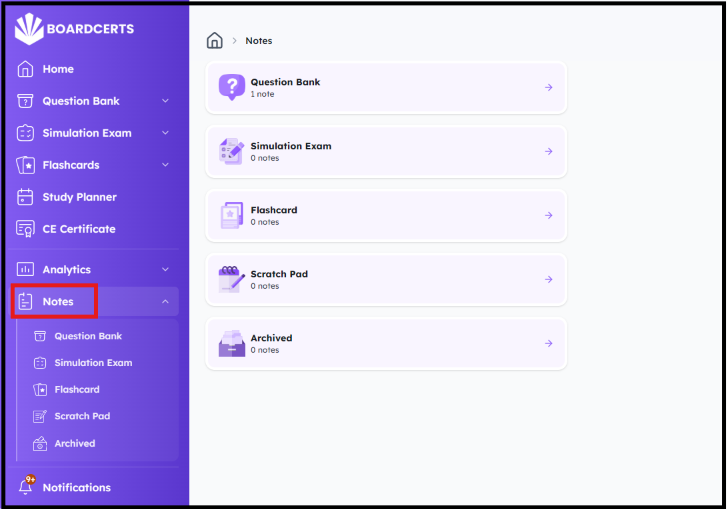
There are multiple tools to help you streamline your study and make the most of your preparation time in BoardCerts. One of those tools is the Notes feature. You can add notes to the questions, flashcards, lectures, and even create new notes for yourself.
First you'll need to complete some practice tasks, you can refer to these articles to create different practice sessions in BoardCerts:
- How to Create a Custom Question Bank in BoardCerts
- Learning with Simulation Exams in BoardCerts
- Learn Complex Concepts with Video Lectures at BoardCerts
There's multiple ways you can use the Notes feature:
1. Question Notes
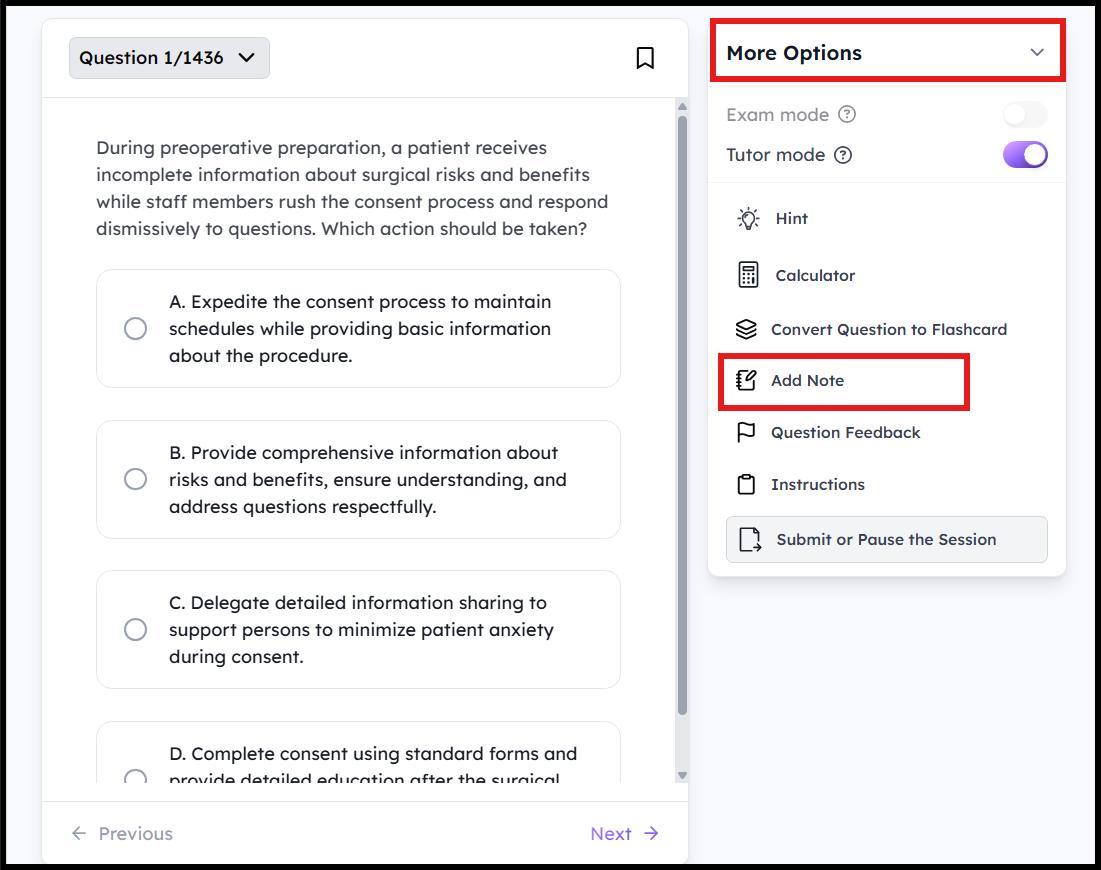
Step 1: To add Notes to questions, first create either a question bank or start a simulation exam session. Once you start the session, click on the More option on the right and go to Add Note:
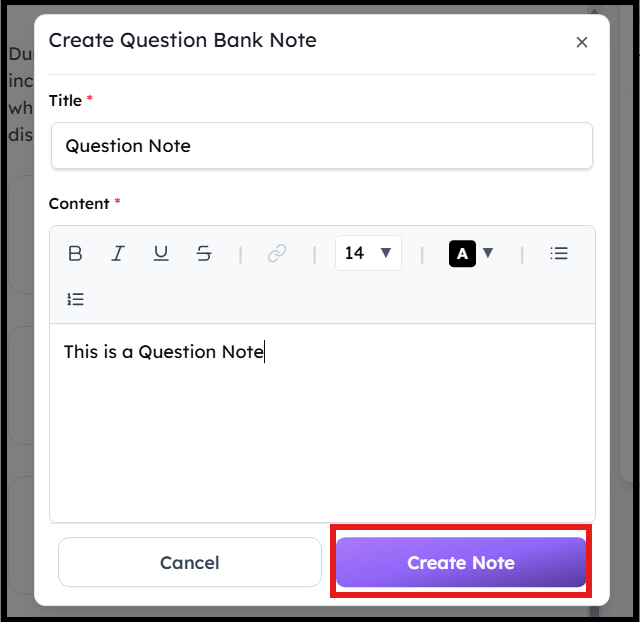
Step 2: Add the title and content of your note, then click on Create Note. You can add multiple notes via this process.
2. Flashcard Notes
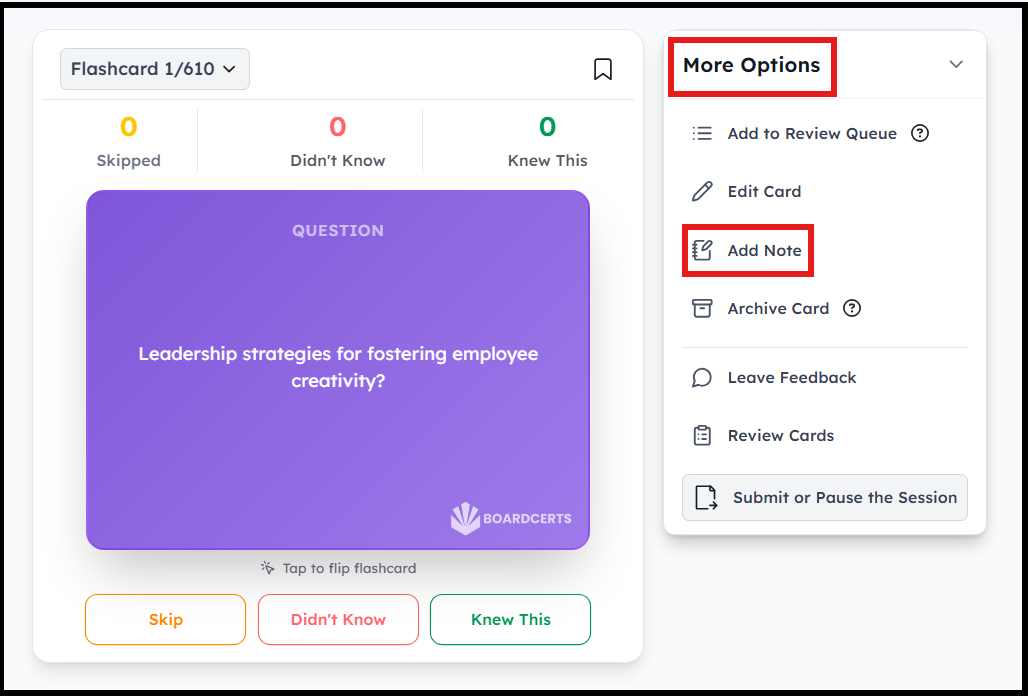
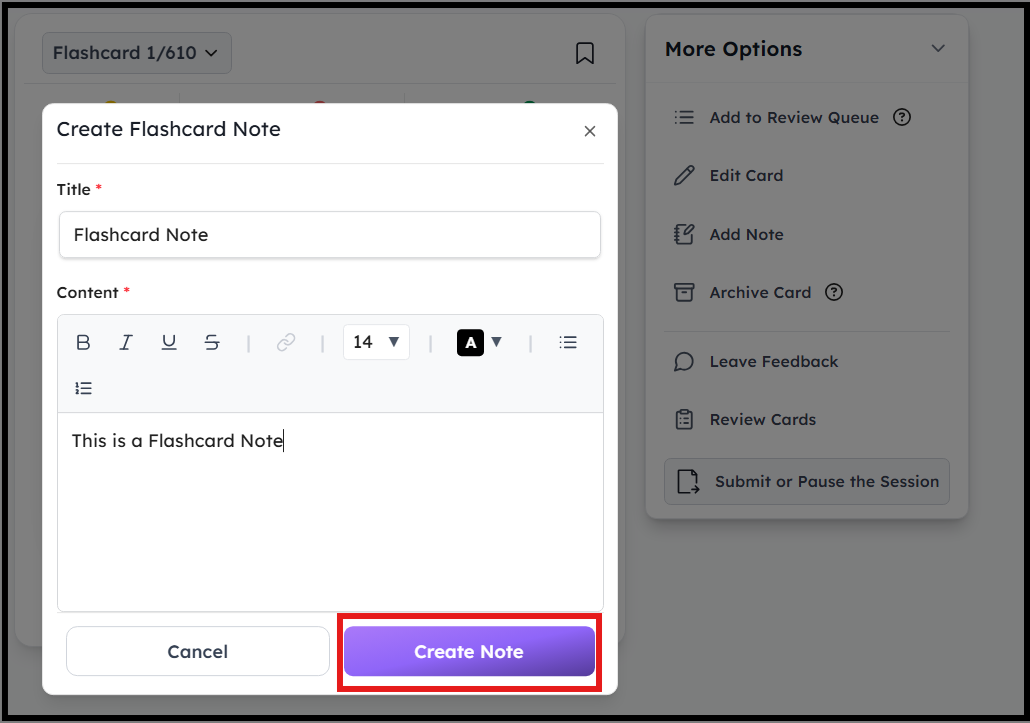
Step 1: To add Notes to Flashcards, first create flashcard session. Once you start the session, click on the More option on the right and go to Add Note:
Step 2: Add the title and content of your note, then click on Create Note. You can add multiple notes via this process.
3. Lecture Notes
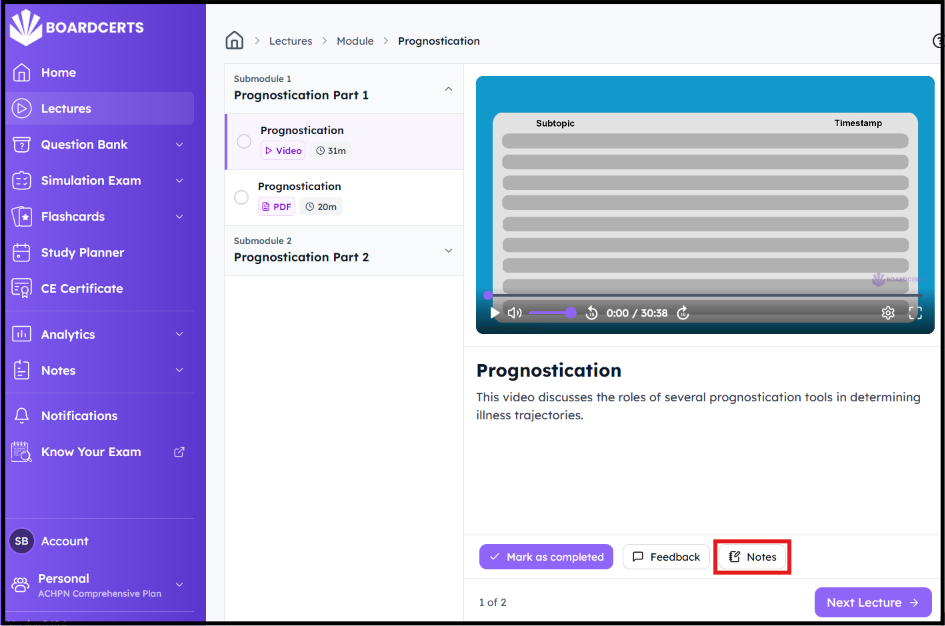
Step 1: To add Notes to Lectures, first start a lecture session and navigate to Module > Submodule. Once you start the session, click on the Notes option:
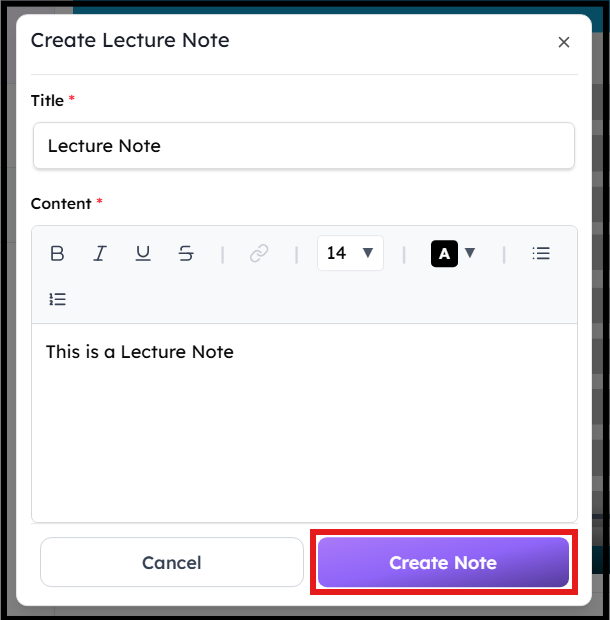
Step 2: Add the title and content of your note, then click on Create Note. You can add multiple notes via this process.
4. Custom Notes
Step 1: Navigate to Notes from the main menu and click on Scratch Pad
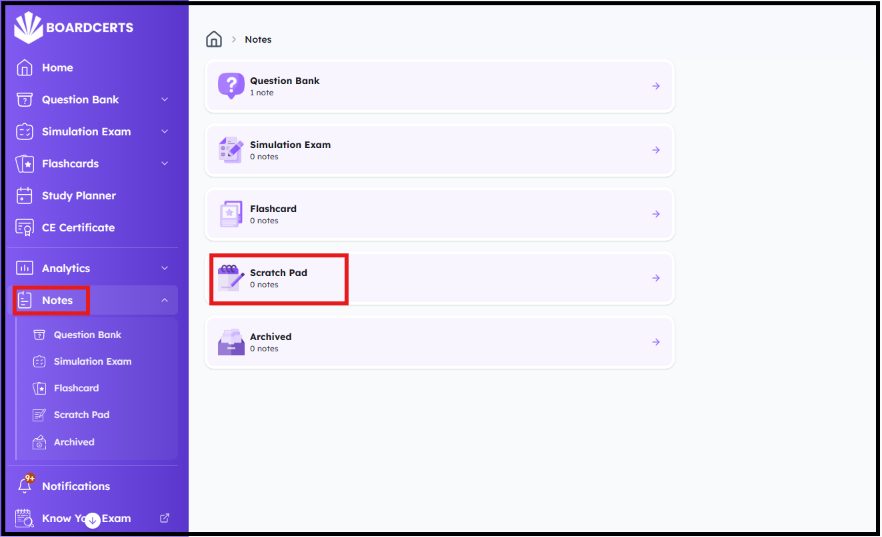
Step 2: You can then create a new Note
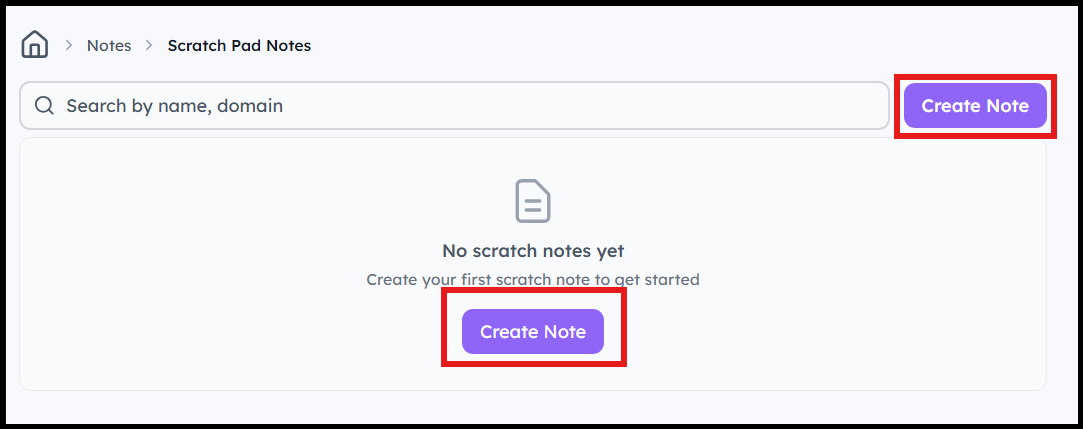
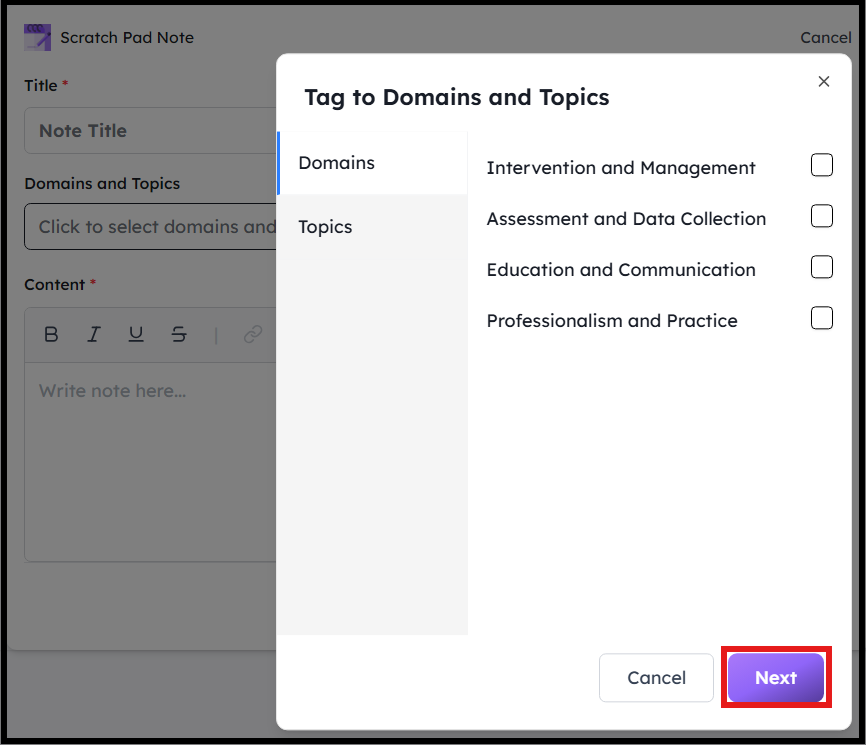
Step 2: Create a new custom note and tag Domains and Topics, should you need to.
You can review your notes by navigating to the Notes option from the main menu and select the ones you want to review.